The fundamentals of VIm
Vim (/vɪm/;) is a contraction of Vi IMproved, originated from the Vi editor (1976).
Vscode is great but have you ever used command-line editors more or less vim for your daily development tasks. I’ve been using Vim for the last few months as my IDE and env of choice for writing all my code and I must say I can never think of switching back.
Vim is one of the most popular command-line-based editor and comes with a lot of features your IDE isn’t really capable unless it supports Vim emulation mode.(Vscode does btw but not all features are ported).
Getting started with vim is not that easy ngl, and definitely requires time. But if you are interested in using vim, delete the IDE from your computer right now and jump down to the land of vim and the crazy key binds.
Initially vim might make you slow with your work and you’ll be frustrated but don’t stop there after some practice you’ll start seeing the improvements and completing tasks faster than you did with your IDE.
Philosophy of Vim
vim is a modal editor
It starts up in normal mode and key combinations help change the modes.
Vim’s interface itself is a programming language
The end result is an editor that lets you
“edit as you think”
Vim is programmable using Vimscript, where commands are composable and it’s interface itself is a programming language.
Vim avoids usage of mouse because it is slow, also the arrow keys as it requires too much movement.
Operation Modes
normal - esc
For moving around a file and making edits
insert - i
Inserting text
replace - r
Replacing text
visual - v
For selecting blocks of text
- Visual Line mode -
V - Visual block mode -
^V
Command line mode - :
This mode has many functionalities, including opening, saving, and closing files, and quitting Vim1.
Keystrokes have different meanings in different operating modes.
The Basics
The keybinds of vim are so useful and popular that people use them in other applications such as browsers, file managers and the shell ofc.
To get started with vim open your cmd-line environment and install vim to get started with the basics.
Relax it’s gon’be good,I promise ;)
:quit :q -> quit current window you are in
:qa -> quit all
:w -> save/write
:wq -> save and quit
:e {file name} -> open file for editing content
:ls -> show open buffers
:help
:help :w -> help for w
w and :w are differnt as :w is cmd mode not w
^D -> to move around in normal mode
Vim maintains buffers i.e a set of open files. Buffers of tabs/spaces is different in vim
Windows are merely views. A given buffer may be open in multiple windows, even
Within the same tab. This can be quite handy, for example, to view two different parts of a file at the same time.
:sp make split and open same file making a new tab
Movement
hjkl -> keys for movement
 k
h  l
 j
Words
Some essential moves to navigate and work with words
w -> move cursor forward by one word
e -> move cursor to end of word
b -> move cursor back by one word
Lines
0 Beginning of the line
$ ->moves to end of the line
^ -> first non empty character on the line
Movement in buffer
^u ->up the file
^D ->down the file
File
G - move to bottom of the buffer
gg - move to buffer all the way up
Screen
L - move to the lowest line in the screen
M - move cursor to the middle of the screen
H - move to the top/highest line in the screen
Line numbers
:{number}<Enter>
{number}G
Find and to
find with f
fo -> finds first words with o in the line
Fo -> finds prev words with o in the line
Find and to with t
to -> jump to o one character before o
To -> jump to O one character after o
Editing commands
i -for insert mode
o - open a new line below the cursor and enter insert mode
O - open a new line above the cursor and enter insert mode
Deleting & Yanking
dw - delete the word
dl - delete the line
de - delete the end of the word
c - change and replace
ce - change the end of the word
x - delete the charactes that is on cursor
r - replace character with other character
y - yank (copy)
yw - copy word
~ - change the case of the word
yy - yank a line (copy)
p - paste a line
u - undo
^R - redo
dd - delete line
^v - highlight the line
j - keep highlighing lines
y - yank and register
d - delete
v - visual mode and highlight word
Modifiers
a - around
i - inside
c2w- change two words
ci[ - change inside squarebrackets
% -jump b/w parenthesis
/{regex} - search
di( - delete content inside paranthesis
da( - delete around paranthesis including ()
a - append
n, /N -next match in search
ci' - change contents inside quotes
. -repeat previous task/command
:s - substitute
Customizing Vim
Vim is customized through a plain-text configuration file in ~/.vimrc.
Vim is heavily customizable, and it’s worth spending time exploring customization options. You can look at people’s dotfiles on GitHub for inspiration.
To look at my config files and plugins I use you can click here.
My Vim setup
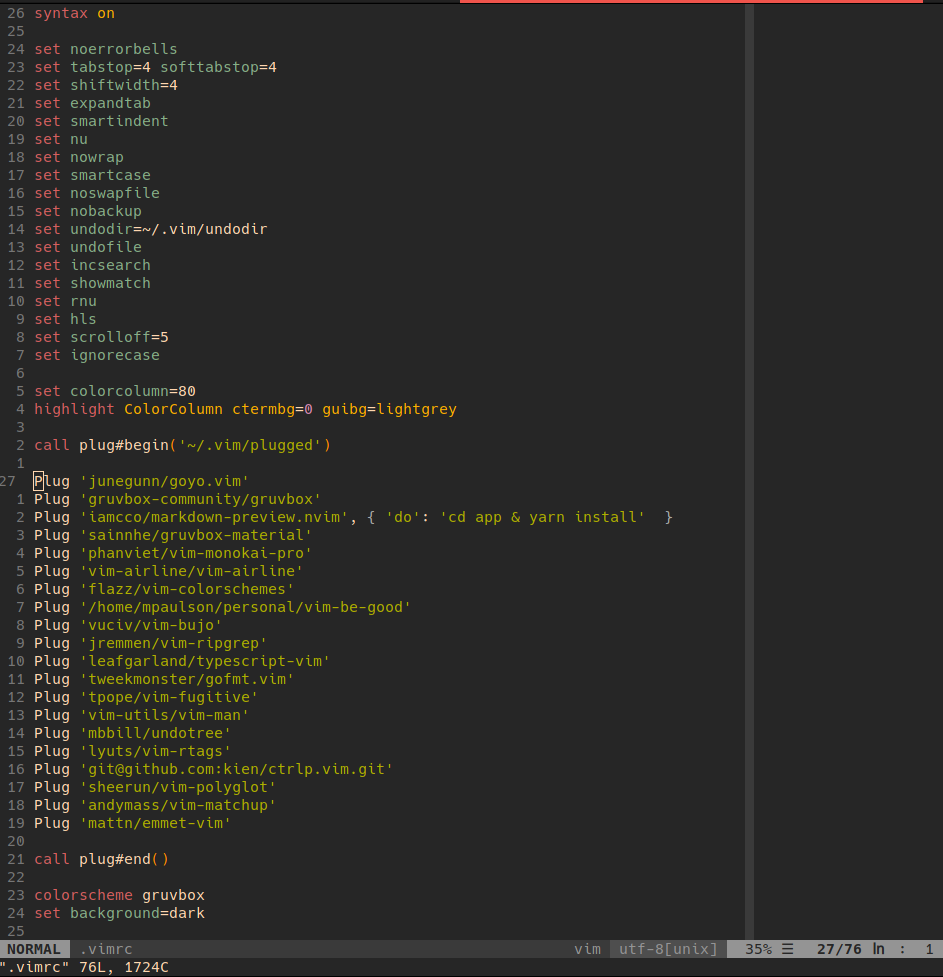
To learn more about vim
vimtutoris a tutorial that comes installed with Vim,you should be able to run vimtutor from your shell and start your vim journey.