Getting Good with Git
Git1 is a tool to keep tracks of files,folders and code.
Version controls systems such as Git facilitate collaboration.
Version control systems(VCSs):
saves files/folders/code in a series of snapshots and encapsulates them together.
Store metadata including author,messasge,timestamps and so on.
Why use Git?
- To look at older versions of code
- Fixing bugs while working
- Send patches and resolving conflicts
- Find module data and figure out all changes and updates
- Maintain a log of changes
- Work on parallel branches of development
In a scenario where your unit tests are not passing you often look at changes in the code and git helps identify errors and searches the history to look at the change that broke your project.
Git is now more or less the default version control system
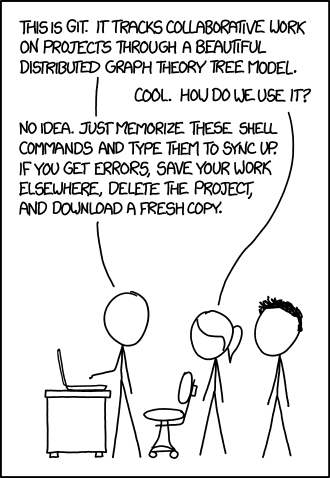
Git has a well thought-out model and needs to be understood properly while the design underlying is great when looking at the data models,things get complicated.
Git’s data model
-root dir
|
+ -- folders (tree)
    |
    |
    + -- files  (blob)
        |
        + -- more files
        |
        + -- more files
History generally is a linear sequence of snapshots.
Git does not use this method of storing history but uses a Directed Acyclic Graph (DAG)2 of snapshots.
It allows for snapshots where you can make a new snapshot making a bug fix,another with a feature and later combine them together into one by merging the code from different development branches into your main code.
This allowing for branching for development and merging instead of having a linear graph for history.
In addition it allows for finding errors,report merge conflicts in code and erasing code from the main branch.
Snapshots also contains metadata about:
- author
- message
- time
Pseudocode for data Model in Git
type blob = [array <byte>]
// array of bytes
type tree
//mappings from file or folders in the same or different subtree map
type commits
//have parents and what proceed them and merge commits can have multiple merge commits along with metadata.
[
    type commit = struct {
    parents: array<commit>
        author: string
        message : string
        snapshot: tree
    }
]
A clean, simple model of history.
How git stores data
Defines a object(blob,tree,commit). Blobs, trees, and commits are unified in this way: they are all objects.
objects = map<string,object>
All objects are content addressed and are maintained as a content address store where the key is the hash of the object.
def store(o):
    id = sha1(o)
    object[id] = o
Hash function
A hash function(SHA-1)3 takes a big piece of data and turns it into a short string.
To load from the store git is looking them up by their id and retreive it’s contents.
def load(id):
    return object[id]
Git is implemented with a combination of languages including bash,c & perl
SHA-1 hashes are hexadecimal strings and 40 char longs
Git maintains objects and a set of references.
References are pointers to commits and is a map form string to string
references = map <string,string>
The Git graph is immutable while the references are mutable and in the end it is all about the manipulation of these objects and references.
Git has a staging area and takes a snapshot when using git commit
$ git cat-file  -p <hash> #give tree,author,committer data and contains hash

$ git log --all --graph --decorators # graph representation of logs

$ git checkout # look at files at particular commit

$ git diff hello.txt #diff
Basics of Git
Git has a lot of tools and GUI environments to make working with code easier,but we will focus on the git CLI and all you can do with it.
let’s git gud with git
:)
git help <command>: #get help for a git command

git init #creates a new git repo, with data stored in the .git directory

git status #tells you what’s going on

git add <filename> #adds files to staging area

git commit #creates a new commit
           #Write good commit messages!
           #Even more reasons to write good commit messages!

git log #shows a flattened log of history

git log --all --graph --decorate #visualizes history as a DAG

git diff <filename> #show differences since the last commit

git diff <revision> <filename> #shows differences in a file between snapshots

git checkout <revision> #updates HEAD and current branch
Branching and merging
git branch #shows branches

git branch <name> #creates a branch

git checkout -b <name> #creates a branch and switches to it
    same as git branch <name>
            git checkout <name>

git merge <revision> #merges into current branch

git mergetool #use a fancy tool to help resolve merge conflicts

git rebase #rebase set of patches onto a new base
Remotes
git remote #list remotes

git remote add <name> <url> #add a remote

git push <remote> <local branch>:<remote branch> #send objects to remote and update  remote reference

git branch --set-upstream-to=<remote>/<remote branch> #set up correspondence between local and remote branch

git fetch #retrieve objects/references from a remote

git pull #same as git fetch; git merge

git clone #download repository from remote
Undo
git commit --amend #edit a commit’s contents/message

git reset HEAD <file> #unstage a file

git checkout -- <file> #discard changes
Advanced Git
git config #Git is highly customizable

git clone --depth=1 #shallow clone, without entire version history

git add -p #interactive staging

git rebase -i #interactive rebasing

git blame #show who last edited which line

git stash #temporarily remove modifications to working directory

git bisect #binary search history (e.g. for regressions)

.gitignore #specify intentionally untracked files to ignore
For further reading,
https://github.com/captn3m0/awesome-vcs
https://git-scm.com/book/en/v2